Brain food for publishers and followers.
Get Your Feeds Delivered to Google Sheets
You can now choose Google Sheets as a delivery channel. Every new story from a feed you follow is added as a new row to a spreadsheet in your Google Drive.
That makes it easy to sort and filter stories, share them with your team, or use them in other tools that read from Google Sheets. For example, collect all mentions of your competitors in one sheet, or build up a history of the interest rates you track.
Here’s how it works.
1. Connect Your Google Account
When you follow a feed, or edit the settings of one you already follow, select Google Sheets among the delivery channels. You need to be logged in to follow.it for this.
The first time, Google asks you to give follow.it access. We only ask for access to the spreadsheets follow.it creates for you, not to the rest of your Google Drive. Please make sure to tick the box that grants this access, otherwise we can’t write into your sheet.
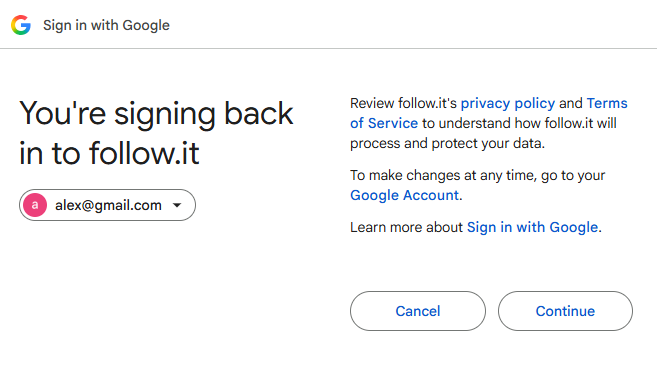
2. Choose Where Your Stories Go
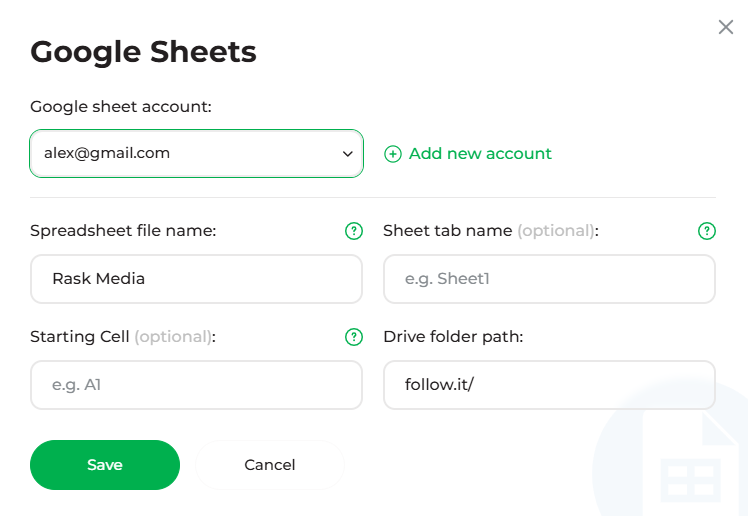
Once you’re connected, a window opens where you decide where your stories should go:
- Google account: If you’ve connected more than one, pick the one to use.
- Spreadsheet name: By default, this is the name of the feed. If no spreadsheet with that name exists yet, we create it for you.
- Drive folder path: By default, the spreadsheet goes into a folder called “follow.it” in your Google Drive. If the folder doesn’t exist, we set it up.
- Sheet name (optional): The tab to write into. Leave it empty to use the first tab.
- Starting cell (optional): The cell where the data should start, e.g. A1. Leave it empty and each new story simply goes into the next empty row.
You can change these settings anytime by clicking the edit button next to the Google Sheets channel.
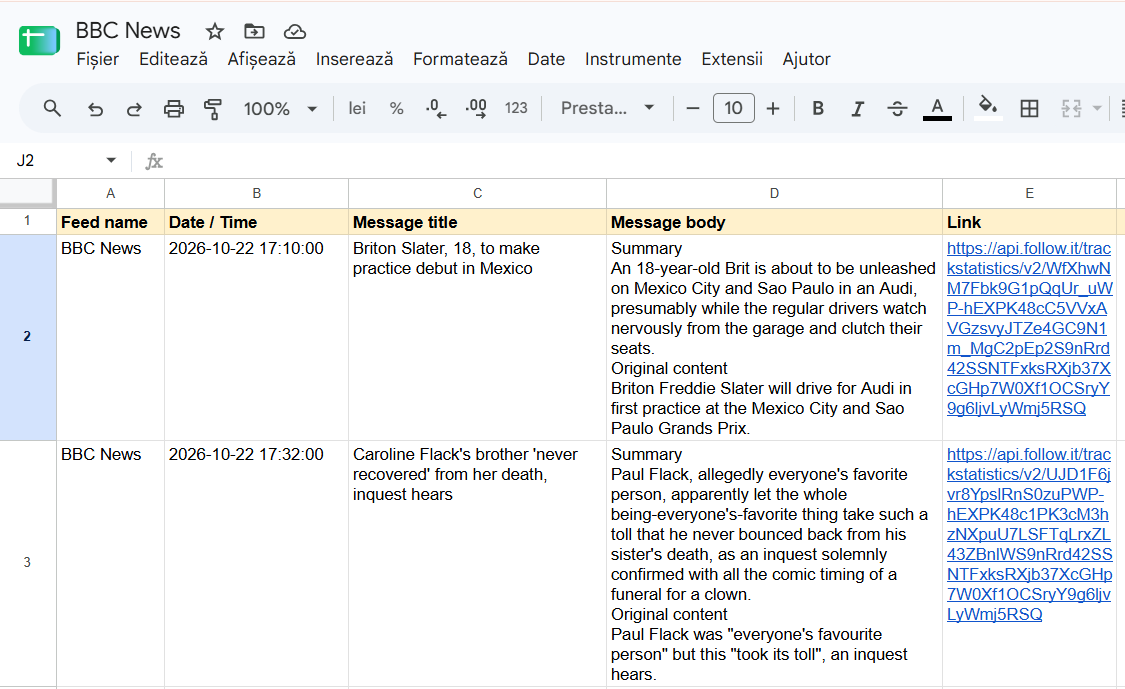
3. Watch Your Sheet Fill Up
From now on, every new story lands in your sheet within a couple of minutes, with its title, description and link in separate columns.
This works for regular feeds as well as special feeds like our number feeds, e.g. mortgage rates or central bank interest rates.
4. Manage Your Google Accounts
In your Delivery settings, you’ll find a new section for your Google accounts. There, you can connect additional accounts or disconnect one.
Please note: if you disconnect a Google account, Google Sheets delivery stops for all feeds that used that account.
For publishers: Your feed statistics now also show how many of your followers receive your stories via Google Sheets.
Give It a Try!
Google Sheets delivery is live for all users now. Head over to My Feeds, open the settings of a feed, and select Google Sheets.
Want more? Our lifetime deal on AppSumo unlocks premium features like AI Processing and ad-free emails for a one-time payment. It’s only available until the end of November.
We’d love to hear what you think. Reply to any follow.it email or write to [email protected].