Brain food for publishers and followers.
New: Organize Your Feeds into Categories
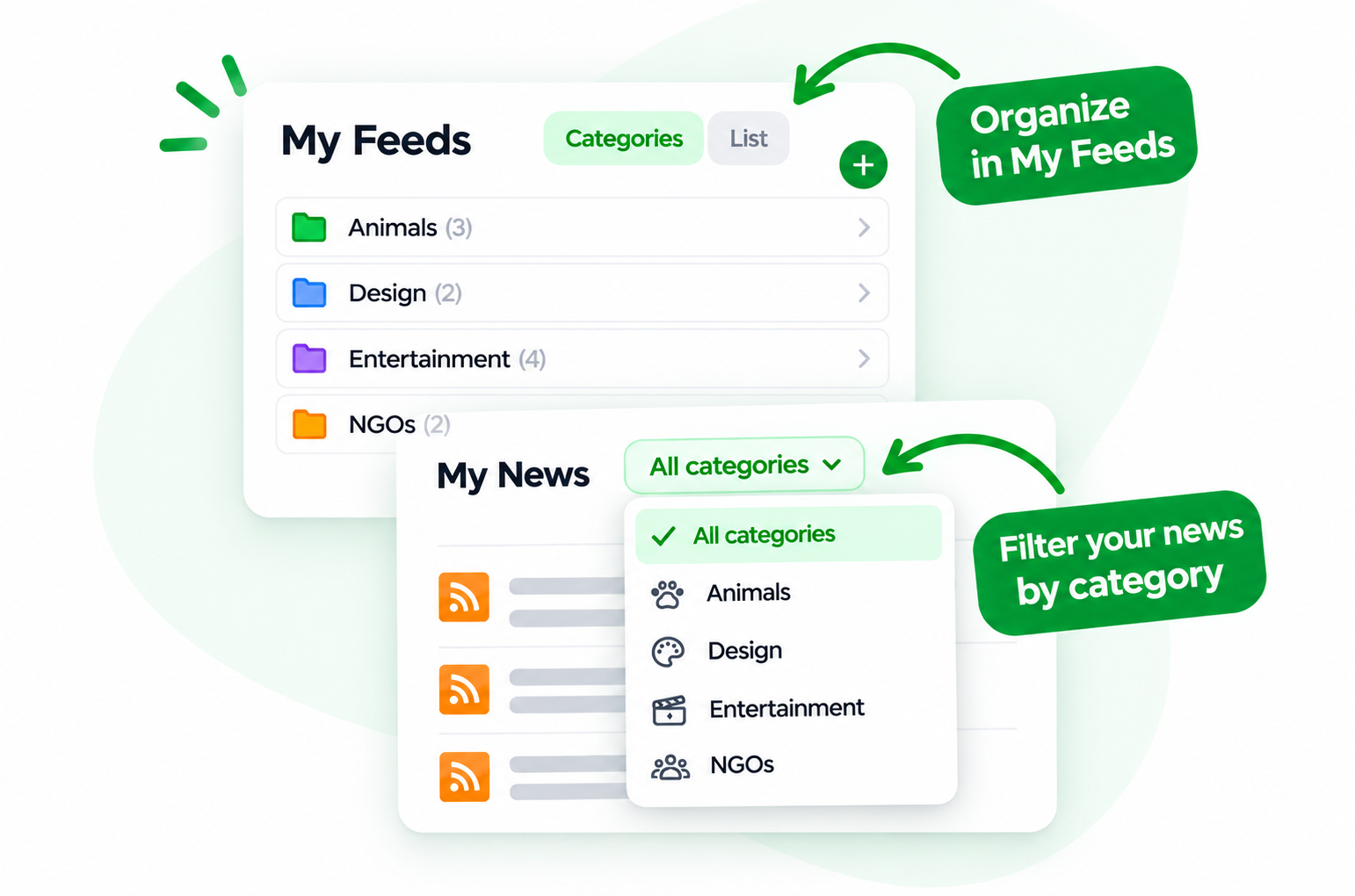
You can now sort your feeds into categories, filter your news by category, and manage many feeds at once!
Here’s how it works.
1. Choose a Category When Following a Feed
When you’re about to follow a feed, you’ll now find an option at the bottom right of the screen where you choose your settings: “Edit Feed Name and Category.” This way, the feed lands in the right place from the start.
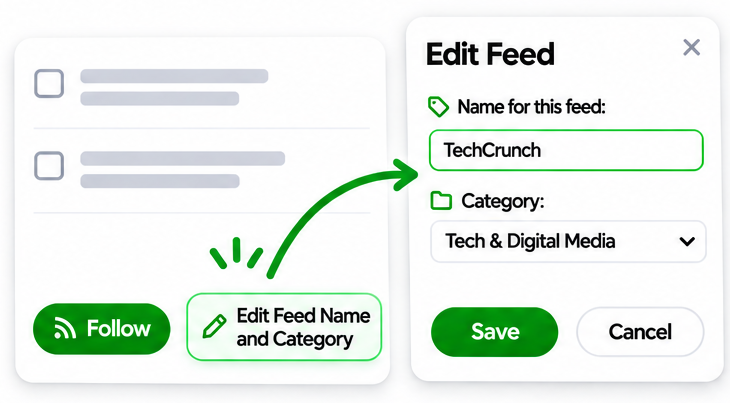
In the dialog that opens, you can give the feed a custom name and put it in an existing category or a new one.
2. Organize Your Feeds in My Feeds
You can also organize your feeds anytime in My Feeds.
Here, you can create, rename, and delete categories, move feeds between them, and give individual feeds custom names.
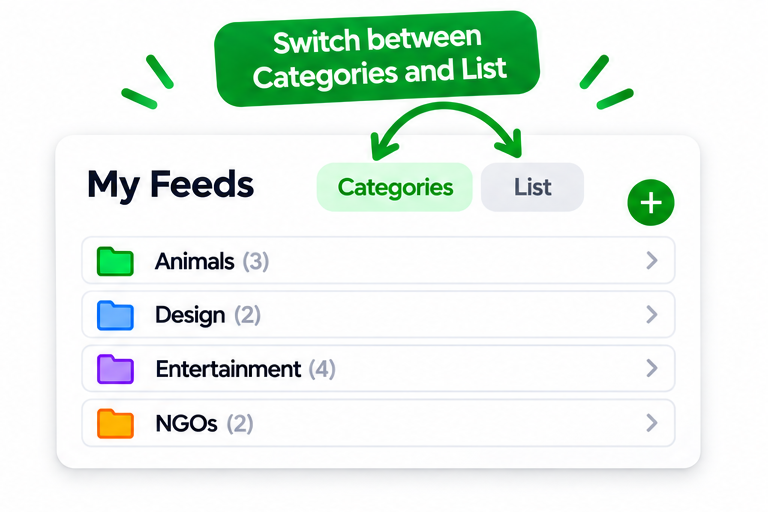
Switch between Categories view, which groups your feeds by category, and List view, which shows them all in one list.
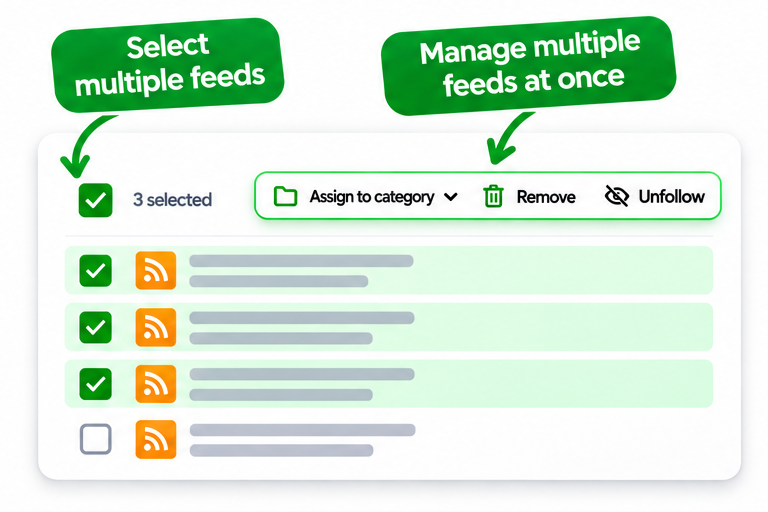
To save time, you can manage several feeds at once. Select the feeds you want to change, then assign them to a category, remove them from one, or unfollow them, all in one go.
3. Filter Your News by Category
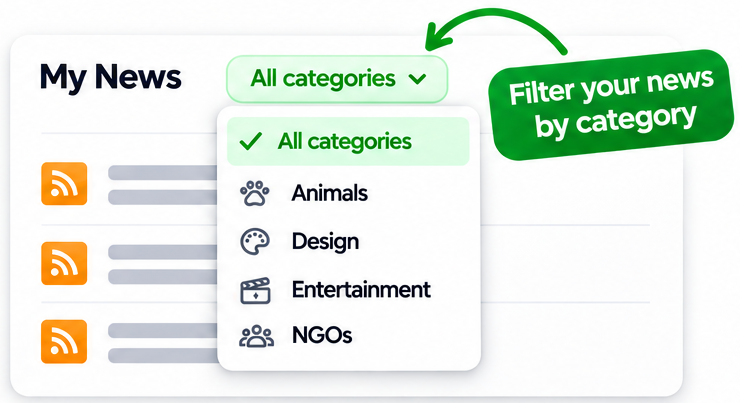
The categories you create in My Feeds are also available in My News.
Select a category from the dropdown at the top to see only updates from feeds in that category. Select All categories to see everything again.
Give It a Try!
Categories are live for all users now. Head over to My Feeds and start organizing.
Want more? Our lifetime deal on AppSumo unlocks premium features like AI Processing and ad-free emails for a one-time payment. It’s only available until the end of November.
We’d love to hear what you think. Reply to any follow.it email or write to [email protected].
Have questions or ideas for improvements? We’d love to hear from you!